
Can I Use a 65-Inch TV as a Monitor?
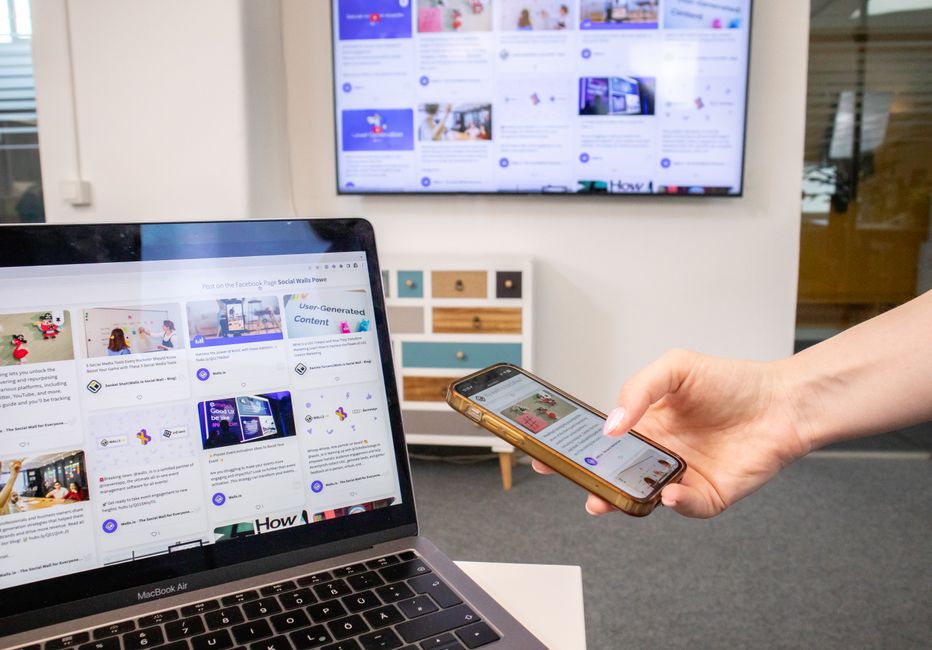
Yes, you can use a 65-inch TV as a computer monitor, especially for gaming or couch-based PC use. For desk work, fit depends on viewing distance, desk depth, and whether the TV supports 4K at 60 Hz, 4:4:4 chroma, and 1:1 pixel mapping. Test text clarity, scaling, overscan, refresh rate, and cursor response before settling on the setup.
Can I use my 65-inch TV as a computer monitor?
Yes, a 65-inch TV can serve as a PC display, but its usefulness depends on the job and the distance between you and the screen. A couch-based setup gives the large image room to breathe. A shallow desk pushes the screen close and makes the whole panel harder to scan.
For productivity, resolution alone does not settle the question. Microsoft Developer Support describes UHD 4K as 3840 × 2160, or about 8 million pixels, equal to four 1920 × 1080 displays. The same guidance says suitability depends on working distance and describes 40–49-inch screens as most acceptable in typical 2–4-foot setups. A 65-inch panel is larger still, so treat seating distance and neck movement as part of the display choice.
For small text and sharp desktop edges, check the TV’s PC mode, 4:4:4 chroma support, and 1:1 pixel mapping. Chroma 4:4:4 preserves full color detail at each pixel, which helps keep colored text edges from smearing. One-to-one mapping means the TV displays the computer’s pixels without cropping or enlarging the image. According to Microsoft Developer Support, a large UHD display used as a PC screen should support 4K at 60 Hz and 4:4:4 chroma; the post also reports 125% or 150% scaling as usable in its author’s setup.
Run a no-purchase test before changing your desk. Connect a computer, open a document with small text and a desktop with clear edges, then check for blur, cropped borders, and scaling that makes controls too small or too large. Move the cursor across the screen and check the available refresh-rate setting. This separates a good TV-PC match from a panel that is merely large.
How far away should I sit from a 65-inch TV used as a monitor?
There is no single best distance for every PC task; a farther seat suits a 65-inch screen better than a close desk position for many users. Sony lists 2.69 m (8.9 ft) as a mixed-use viewing distance for a 30° field of view and 1.98 m (6.5 ft) for a 40° cinema view. Those figures describe viewing guidance, not a rule for desktop work.
Sony also gives a 4K minimum distance of 1.5 times the screen’s vertical height, at which individual pixels cannot be distinguished by the naked eye. That threshold answers a narrow question about visible pixels. It does not mean text is comfortable to read at that distance or that the screen is well placed for a keyboard and mouse. Sony says comfort depends on content, environment, and the viewer.
The Japan Ergonomics Society’s guideline gives a mean optimum distance of 315 cm for a 65-inch television and a mean minimum acceptable distance of 167.7 cm. It also separates TV placement from monitor placement: TV guidance puts the screen center at eye level, while computer-monitor guidance generally puts the top edge at eye level or slightly lower. A wall-mounted TV behind a desk can therefore call for a different height than a screen watched from a sofa.
| Setup check | What the sources indicate | Practical implication |
|---|---|---|
| Mixed-use TV viewing | 2.69 m (8.9 ft), Sony’s 30° guidance | A useful reference for a farther-back arrangement |
| Cinema-style viewing | 1.98 m (6.5 ft), Sony’s 40° guidance | A more immersive view, not a desk ergonomics standard |
| Pixel visibility on 4K | 1.5 times the screen’s vertical height, Sony’s minimum guidance | Pixels may blend at this distance; comfort still varies |
| Ergonomics guideline | 315 cm mean optimum; 167.7 cm mean minimum acceptable | Use these as TV viewing references, not universal computer distances |
Try the position you can actually hold. If the screen fills your view only when you lean back from the keyboard, the desk layout is working against the TV. If it is wall-mounted, check whether your eyes travel across the screen without repeated head turns and whether the upper rows remain readable.
Will text look clear on a 65-inch 4K TV connected to a PC?
Text can look clear on a 65-inch 4K TV when the computer sends a native 4K signal and the TV displays the image without chroma loss or overscan. 4K gives the panel many pixels, but clarity also depends on how the TV processes the computer’s signal and how the operating system scales its interface.
Use the computer’s display settings to select the TV’s native resolution and a refresh rate the TV supports. Set the picture mode to PC or an equivalent mode, then look for a setting that enables 4:4:4 chroma and 1:1 pixel mapping. Menu labels differ by TV; the sources do not provide model-specific steps. Check the result on actual small text, thin lines, and the edges of desktop windows rather than relying on a mode name alone.
Scaling is the next choice. At a viewing distance, an unscaled desktop can make interface elements too small to read; scaling enlarges controls while preserving a high-resolution workspace. Microsoft’s display guidance reports 125% and 150% as usable in its author’s setup, not as universal prescriptions. Set a level that keeps menus legible from your seat, then check whether apps and text remain crisp.
Overscan is a separate problem: the TV enlarges the image and cuts off the outer edges. If the taskbar or window borders disappear, look for a full-pixel, screen-fit, or similar setting on the TV and a matching output setting on the computer. A successful setup shows the full desktop, sharp text, and a pointer that tracks smoothly.
What TV settings make a TV work better as a computer monitor?
For desktop use, start with signal accuracy and then tune readability: native resolution, supported refresh rate, PC mode, 4:4:4 chroma, 1:1 mapping, and operating-system scaling. For gaming, add the TV’s low-latency or game mode and check whether the model supports the refresh rate and variable refresh features you need.
- Connect the PC and select the TV’s native 4K resolution. Check which refresh rates are available.
- Enable PC mode or the TV’s equivalent, then confirm that small text and colored edges look clean.
- Turn off overscan or choose a screen-fit setting if desktop edges are cropped.
- Adjust operating-system scaling until text and controls are readable from the intended seat.
- For gaming, enable low-latency or game mode and test cursor or controller response in the games you play.
HDMI 2.1 is optional for basic PC display use. The HDMI Forum says the specification supports 4K at 120 Hz, bandwidth up to 48 Gbps, VRR, and Auto Low Latency Mode. Those features matter for high-refresh-rate gaming and variable-refresh support; they are not a prerequisite for connecting a computer to a TV.
Input lag is model-specific. RTINGS’ input-lag resource covers testing across 559 televisions and notes that lag varies by TV and settings. Screen size or an HDMI label cannot predict responsiveness. Use the TV’s low-latency mode and consult measurements for the exact model when gaming response matters.
The trade-off is clear: productivity asks for crisp text, usable scaling, and a comfortable viewing position; gaming asks for supported refresh features and low input lag. A TV can meet both sets of needs, but the setup must be checked for each one.
Frequently Asked Questions
Do I need HDMI 2.1 to use a 65-inch TV as a PC monitor?
No. HDMI 2.1 is not required for a basic PC connection. It matters for features such as 4K at 120 Hz and VRR, so check the TV and computer ports if you want those gaming options.
Is a 65-inch TV too big for desk work or programming?
It can be too large at a close desk distance if you need to move your head often to scan the screen. A farther-back setup, suitable scaling, and a position that keeps the top edge at or slightly below eye level can make the layout more workable.
Can I use a 65-inch TV for PC gaming without noticeable input lag?
That depends on the specific TV and its settings, not its size alone. Use the low-latency or game mode and check model-specific input-lag measurements if responsiveness matters.
What are the downsides of using a TV as a monitor?
The main trade-offs are close-range ergonomics and text rendering. A large screen can require more head movement, while weak chroma handling, overscan, or unsuitable scaling can make text and desktop edges look poor.
Sources
You may also like
Which Is Better a 32-Inch Monitor or a 32-Inch TV?
A 32-inch monitor suits close work; a TV works for video and computing if its PC mode, chroma, and refresh rate fit.

Should I Use DDP or DAP When Shipping Commercial Goods to Spain?
A practical guide to choosing DDP or DAP for Spain, handling EORI, import VAT, customs documents, and shipment-delay risks.
How Do I Buy and Activate a Used Phone on My Carrier or MVNO?
A practical used-phone checklist for checking IMEI status, carrier compatibility, unlock status, eSIM readiness, and safe activation.

Does Baking Soda Remove Dark Spots?
Baking soda has not been shown to fade dark spots, and irritation may worsen discoloration; sunscreen and gentle, suitable treatments are safer.