
What Can the New Flip Phone Do Without Opening It?
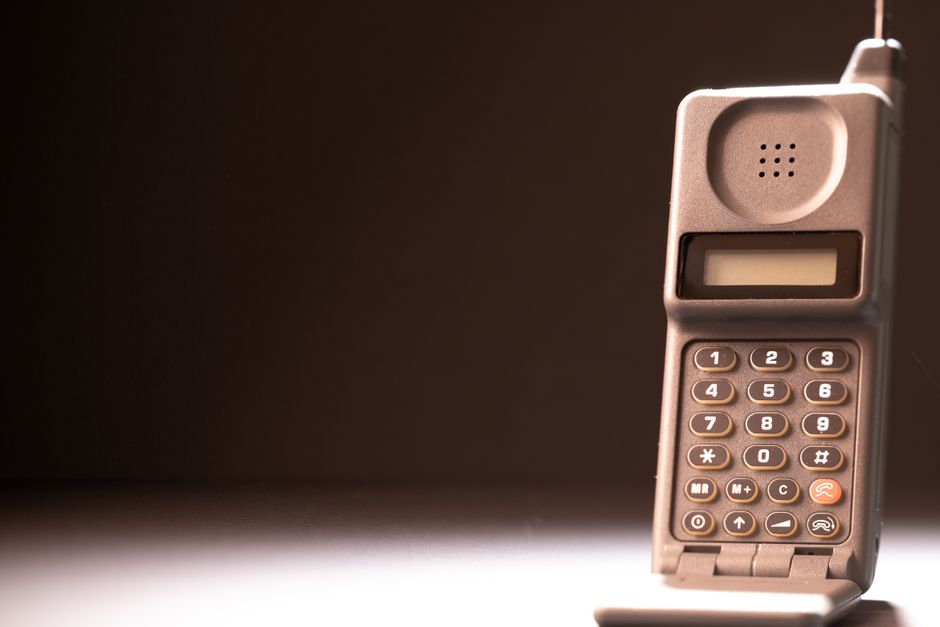
The new flip phone, Samsung Galaxy Z Flip8, can handle quick tasks from its FlexWindow without unfolding: check notifications, adjust settings, open widgets, use Samsung Wallet, and launch supported apps. Samsung lists 16 cover-screen apps, though some are Labs options and may be less reliable on the smaller display. For broader app access, Good Lock and MultiStar can help, but opening the phone remains better for unsupported or full-screen tasks.
Can I use apps on the Galaxy Z Flip8 without opening it?
Yes, you can use notifications, settings, widgets, Wallet, and compatible apps directly from the Galaxy Z Flip8 FlexWindow. The key is to treat the cover screen as a quick-action surface: it saves an unfold for a short task, but it does not make every phone app equally practical.
Samsung Support describes the basic navigation. Swipe right to view notifications, swipe down for Quick settings, swipe left to browse widgets and supported apps, and swipe up to open Samsung Wallet after setup. In Quick settings, you can adjust items such as Wi-Fi, Bluetooth, and brightness without opening the phone.
For a first-time setup, add the widgets and app shortcuts you expect to use while the phone is closed. Samsung recommends widgets such as Calendar, Weather, Samsung Wallet, Samsung Health, Music, and Timer. Its support guide also describes Now Brief cards for at-a-glance information such as weather, calendar events, reminders, and health insights.
Use a simple decision rule: if the job is a glance, a toggle, or a brief response, try the FlexWindow first. If you need a longer session, more screen space, or an app that is not available there, unfold the phone rather than forcing the small display to do the whole job.
Which apps work on the new flip phone’s cover screen?
The Galaxy Z Flip8 app drawer supports 16 listed apps: 12 system apps and four third-party apps, with some of the third-party choices designated as Labs. That distinction matters because an app being available does not guarantee the same ease of use as on the main display.
Android Authority lists the 12 system apps as Bixby, Samsung Browser, Calculator, Calendar, Camera, Clock, Contacts, Gallery, Samsung Health, Notes, Phone, and Voice Recorder. Its four third-party entries are Google Maps, Google Messages, Netflix, and YouTube, listed under Labs; the report cautions that these may have issues on the smaller screen.
Samsung’s New Zealand setup guide also identifies Google Maps, Messages, YouTube, Spotify, and Camera as apps that can be used from FlexWindow, and notes that availability can depend on software and region. The lists do not line up perfectly: Spotify appears in that setup guide, while Android Authority’s reported 16-app list names Netflix. Treat the device’s own available app list as the practical check for your model and software.
Samsung provides a built-in Favorite apps widget for launching compatible apps. Edit the widget and choose from compatible apps to put useful shortcuts where they are easy to reach. Samsung’s product materials also describe an app tray and an Add apps option, while noting that availability can vary by country, service provider, language, model, and operating-system version.
To decide what belongs on the cover screen, sort tasks by duration. Calculator, Clock, Camera, and quick checks fit a brief interaction; Maps or Messages can help when you need a quick route check or reply. Video apps and longer browsing sessions are more likely to benefit from the unfolded display, particularly because Labs apps may not be optimized for the cover screen.
How do I open the app drawer on the Galaxy Z Flip8 FlexWindow?
To open the app drawer, swipe up from the FlexWindow lock screen, then scroll to the app tray and choose an app. Samsung’s Galaxy Z Flip8 product demonstration shows this route and includes an Add apps option for exploring more choices.
- Wake the cover screen. Start from the FlexWindow lock screen.
- Swipe up. This opens the path to the app tray.
- Scroll and select. Tap an available app to launch it; use Add apps to explore the choices offered on your device.
Some apps require a separate setting. Samsung’s setup guide says to go to Settings > Advanced features > Labs > Cover Screen apps and enable the feature to run full-screen apps directly on FlexWindow. The menu wording and app availability can vary, so use the phone’s current settings and supported list as your guide.
Keep the built-in options distinct from the expanded route. Supported FlexWindow apps and Samsung’s Labs setting are part of the phone’s own cover-screen setup. Android Authority says Good Lock and its MultiStar module can enable use of additional apps, but unsupported apps may not be optimized for the display. That can mean smaller controls or a layout that is harder to use; broader access is not the same as a polished cover-screen experience.
Before relying on a closed-phone workflow, check whether the app appears in the app tray or Favorite apps widget, and whether the required Labs option is enabled. Then try the exact task you need. If the controls feel cramped or the app is absent, opening the phone is the more dependable next step.
Frequently Asked Questions
Can I reply to messages and use maps from the cover screen?
Yes. Google Messages and Google Maps are listed as Labs apps, and Samsung’s setup guide includes Messages and Maps among apps that can run from FlexWindow. Availability can depend on software and region, and Labs apps may have issues on the smaller display.
Do I need Good Lock to run more apps on the Galaxy Z Flip8 cover screen?
No. Samsung’s supported app drawer and Labs options provide cover-screen app access without Good Lock. Android Authority says Good Lock and its MultiStar module can enable additional apps, but those apps may not be optimized.
Is the cover screen useful enough for everyday tasks?
It can cover short checks and actions such as notifications, settings, widgets, Wallet, and launching supported apps. Opening the phone is still the practical choice when an app is unsupported or its controls are difficult to use on the smaller display.
Sources
You may also like
What Should You Know About the New Galaxy Flip Phone?
The Galaxy Z Flip8 starts at $1,199.99 in the US, but its unchanged battery and IP48 rating make it a modest Flip7 upgrade.
How Do I Buy and Activate a Used Phone on My Carrier or MVNO?
A practical used-phone checklist for checking IMEI status, carrier compatibility, unlock status, eSIM readiness, and safe activation.
How Can Multi-Location Businesses Get Flexible Local Storage Without Leasing Warehouses?
A practical framework for choosing, managing, and controlling local business storage across multiple markets.
Does Baking Soda Remove Dark Spots?
Baking soda has not been shown to fade dark spots, and irritation may worsen discoloration; sunscreen and gentle, suitable treatments are safer.